




Drawpyo is a Python library for programmatically generating Diagrams.net/Draw.io charts. It enables creating a diagram object, placing and styling objects, then writing the object to a file.
I love Draw.io! Compared to expensive and heavy commercial options like Visio and Miro, Draw.io's free and lightweight app allows wider and more universal distribution of diagrams. Because the files are stored in plaintext they can be versioned alongside code in a repository as documentation. The XML-based file format makes these diagrams semi-portable, and could easily be ported to other applications if Draw.io ever failed you. For these reason, I think it's one of the best options for documentation diagrams.
When I had a need to generate heirarchical tree diagrams of requirement structures I was surprised to find there wasn't even a single existing Python library for working with these files. I took the project home and spent a weekend building the initial functionality. I've been adding functionality, robustness, and documentation intermittently since.
Available here!
https://merrimanind.github.io/drawpyo/
The basic mode of interacting with drawpyo is to manually create, style, and place objects just like you would using the Draw.io UI. There are a number of ways to style objects and you can write your own functionality for automatically handling style or placement.
import drawpyo
file = drawpyo.File()
file.file_path = r"C:\drawpyo"
file.file_name = "Test Generated Edges.drawio"
# Add a page
page = drawpyo.Page(file=file)item = drawpyo.diagram.Object(page=page, value="new object")
item.position = (0, 0)item_from_lib = drawpyo.diagram.object_from_library(
page=page,
library="general",
obj_name="process",
value="New Process",
)Requires drawpyo 0.2.6 or later. This functionality is available on main but is not included in the 0.2.5 release.
You can import and use external Draw.io XML shape libraries (e.g., Azure, AWS, Google Cloud icons):
# Register an external library
drawpyo.register_mxlibrary(
    "developer",
    "https://raw.githubusercontent.com/jgraph/drawio-libs/refs/heads/main/libs/integration/developer.xml"
)

# Use shapes from the registered library
icon = drawpyo.diagram.object_from_library(
    page=page,
    library="developer",
    obj_name="App Developing",
    position=(100, 100)
)item_from_stylestr = drawpyo.diagram.Object(page=page)
item_from_stylestr.apply_style_string("rounded=1;whiteSpace=wrap;html=1;fillColor=#6a00ff;fontColor=#ffffff;strokeColor=#000000;gradientColor=#FF33FF;strokeWidth=4;")file.write()Drawpyo also provides higher-level functionality that goes beyond what the Draw.io app offers. These diagram types allow you to generate complete structures automatically, without manually placing every element.
This video demonstrates an exemplary automatic diagram layout process:
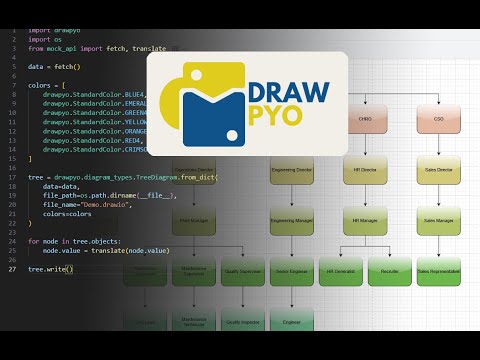
For more details, refer to the documentation.
load_diagram(path) loads a single-page file. For a multipage file, select a
zero-based page explicitly with load_diagram(path, page_index=1), or load all
pages independently with load_diagrams(path). Compressed and uncompressed
pages are supported, including files containing both formats.
import drawpyo

output = drawpyo.File()
for diagram in drawpyo.load_diagrams("source.drawio"):
    page = drawpyo.Page(file=output, name=diagram.name)
    diagram.add_to(page)
output.write()
Each imported diagram has page_id, name, and its own get_by_id() lookup.
Cell IDs are scoped to their original page, so repeated IDs do not merge pages.
Calling load_diagram() on a multipage file without page_index raises
ValueError.
Contributions are welcome. See the contribution guidelines or join our Discord server for more information.