Repository navigation
en faq
Download AstrBot-vxxxxx-dashboard.zip from the release page, extract it, and move it to AstrBot/data. If it still doesn't work, try restarting your computer (based on community feedback).
On first startup, the WebUI account is astrbot by default, and the default password is randomly generated (it is not a fixed hardcoded value). Check the startup logs and log in with the random initial password shown there:
[00:27:40.590] [Core] [INFO] [dashboard.server:523]:
 ✨✨✨
  AstrBot v4.24.3 WebUI is ready

   ➜  Local: http://localhost:6185
   ➜  Initial username: astrbot
   ➜  Initial password: UiYVpZxnW8k22IWqf0ru5pOy
   ➜  Change it after logging in
 ✨✨✨
Set dashboard.host in data/cmd_config.json to enable remote access.
UiYVpZxnW8k22IWqf0ru5pOy is the default password.
If you forgot your AstrBot dashboard password, choose the reset method that matches your deployment method.
The image ships with the AstrBot CLI, so you can reset the password inside the container:
sudo docker exec -it astrbot astrbot password
sudo docker restart astrbot # the new password takes effect after a restart
The first astrbot is the container name; replace it with your actual container name (check with sudo docker ps).
To also change the username, add the --username option: sudo docker exec -it astrbot astrbot password --username <new-username>.
Run the following in the AstrBot working directory (the one initialized with astrbot init):
astrbot passwordTo also change the username, add the --username option: astrbot password --username <new-username>.
Then restart AstrBot for the change to take effect.
For deployments without an available CLI (such as source or panel-based deployments), you can edit the config file directly. Find the "dashboard" field in AstrBot/data/cmd_config.json, for example:
  "dashboard": {
    "enable": true,
    "username": "astrbot",
    "password": "81e0c3dxxxxxxxxxxx78862e78",
    "pbkdf2_password": "pbkdf2_sha256$600000$1xxxxxxxxxxxxxxxxxxxxxxxxxxxxxxxxxxxxxxxxxxxxxxxxxx",
    "password_storage_upgraded": true,
    "password_change_required": true,
    "jwt_secret": "5e1b0280bcxxxxxxxxxxxxxxxxf4a",
    "host": "127.0.0.1",
    "port": 6185,
    "disable_access_log": true,
    "ssl": {
      "enable": false,
      "cert_file": "",
      "key_file": "",
      "ca_certs": ""
    }
  },
Delete the username, password, pbkdf2_password, password_storage_upgraded, password_change_required, and jwt_secret fields (with their values), then save.
The segment should look like:
  "dashboard": {
    "enable": true,
    "host": "127.0.0.1",
    "port": 6185,
    "disable_access_log": true,
    "ssl": {
      "enable": false,
      "cert_file": "",
      "key_file": "",
      "ca_certs": ""
    }
  },
After restart, AstrBot will automatically generate a random password with the fixed username astrbot; check the startup logs.
If you are sure the dashboard password is correct but still cannot log in after upgrading AstrBot, the old WebUI static files may be incompatible with the newer backend.
Solution:
- Stop AstrBot.
- Delete the
distfolder under AstrBot'sdatadirectory:AstrBot/data/dist. - Restart AstrBot.
- Access the dashboard in your browser. Press
Ctrl+Shift+RorCtrl+F5(orCmd+Shift+Ron macOS) to force refresh the page.
After restart, AstrBot will reload or download WebUI files that match the current version.
- In the AstrBot WebUI, open
Config, select the profile used by your bot, and go toAI → Capabilities → Agent Computer Use. SetComputer Use Runtimetolocal. This section requires the built-in AstrBot AI runner. - In the same profile, go to
Access Control → Administrators → Administrator IDsand add your user ID (available through the/sidcommand). - Click
Save Configurationin the bottom-right corner.
Tip
For security reasons, when runtime environment is set to local, AstrBot only allows AstrBot administrators to use computer capabilities by default.
You can select sandbox for the runtime environment, which allows all users to use computer capabilities (in an isolated sandbox). For more details, see AstrBot Sandbox Environment
- In group chats, to prevent message flooding, the bot will not respond to every monitored message. Please try mentioning (@) the bot or using a wake word to chat, such as the default
/, for example:/hello.
-
/name, /provider, /dashboard_update, /op, /deop, /persona, /llm, /plugin, /model, /groupneware the default admin commands. You can use the/sidcommand to get a user's ID, then openConfig, select the profile used by your bot, add the ID underAccess Control → Administrators → Administrator IDs, and clickSave Configurationin the bottom-right corner.
You can customize the font. See details -> #957
Recommended font: Maple Mono.
This is because the provider's API returned empty text. Try the following steps:
- Check if the API key is still valid
- Check if the API call limit or quota has been reached
- Check network connection
- Try reset
- Lower the maximum conversation count setting
- Switch to another model from the same provider / a different provider
- Plugins are installed via GitHub. Access to GitHub from mainland China can indeed be unstable. Configure and save a proxy under
Settings → Network → Proxy & Dependency Sources → HTTP Proxy. You can also set aGitHub Proxy Addresson the same page, or download the plugin archive and install it from the Plugins page.
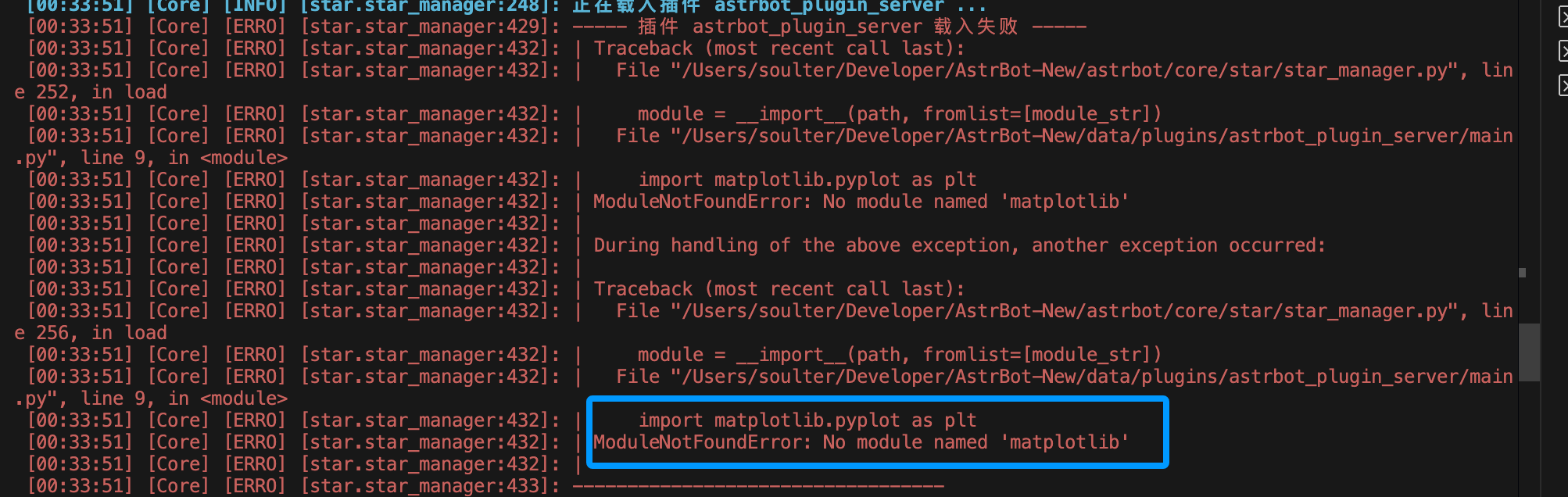
This is because the plugin's dependencies were not installed properly. Normally, AstrBot automatically installs plugin dependencies after installing the plugin, but installation may fail in the following situations:
- Network issues preventing dependency downloads
- Plugin author did not include a
requirements.txtfile - Python version incompatibility
Solution:
Based on the error message, refer to the plugin's README to manually install dependencies. You can install dependencies in the AstrBot WebUI under Data & Logs → Logs → Install pip Package.
Enter the package name in the dialog, optionally specify a PyPI repository URL, and click Install.
If you find that the plugin author did not include a requirements.txt file, please submit an issue in the plugin repository to remind the author to add it.